“What does that say? I can’t read it!”
If you’ve hosted music bingo, you’ve heard this complaint. Someone at the back (or even the middle) can’t read your TV display, and now they’re annoyed instead of having fun.
Display setup is one of those things that seems simple until you’re mid-event with a frustrated crowd. Let’s fix that before it happens.
The Core Problem
A lot of music bingo software displays the current song (and sometimes recent songs) on screen. Sounds helpful, right? But when that text appears too small on a TV across a crowded bar, it’s useless.
Common issues:
- Text too small for the room size
- QR codes unreadable for mobile players
- Poor contrast making text hard to read
- Screen placement nobody can see
- Glare washing out the display
Screen Size vs. Room Size
Here’s the fundamental rule: the farthest viewer needs to read comfortably.
Rough guidelines:
- 32” TV: Tiny room only, max 15 feet viewing distance
- 43” TV: Small bar, max 25 feet
- 55” TV: Medium venue, max 35 feet
- 65”+ TV: Large venue, 40+ feet
- Projector: Large venues, but needs controlled lighting
These assume proper text sizing. If your software uses tiny fonts, even a big screen won’t help.
The Quick Test
Stand at the farthest point where players will sit. Can you read everything on screen without squinting? No? Fix it before the event.
Text Size: Bigger Than You Think
Whatever font size you think is fine, go bigger.
Song titles: Minimum 48pt on a 55” TV, bigger for larger rooms
Artist names: Can be slightly smaller, but still readable
QR codes: At least 3 inches on screen (bigger for large venues)
If your software doesn’t let you adjust text size, that’s a red flag. Work around it by:
- Using a larger display
- Moving the screen closer to players
- Adding a second screen for the back area
Screen Placement Matters
Bad placements:
- Behind the bar where the bartender blocks it
- Next to a window where sunlight washes it out
- In a corner only half the room can see
- Too high making people crane their necks
Good placements:
- Centered where most seats have clear sightlines
- At eye level (seated eye level, not standing)
- Away from glare sources (windows, bright lights)
- Multiple screens for L-shaped or large rooms
If you have one TV and a bad layout, consider mounting a second one or using a projector for overflow.
Display Settings to Adjust
On Your TV
- Brightness: Increase it beyond what looks good at home. Bars are darker but have competing light sources.
- Contrast: High contrast helps text pop.
- Sharpness: Turn it up for text clarity.
- Motion smoothing: Turn it OFF. It makes text look weird.
- Game mode: Enable if available—reduces input lag and sharpens display.
On Your Computer/Laptop
- Resolution: Match your TV’s native resolution (usually 1080p or 4K)
- Scaling: 100% scaling usually works best; oversized scaling can crop content
- Color profile: Standard/sRGB is fine
- Screensaver/sleep: DISABLE THESE. Nothing worse than your display going black mid-game.
In Your Software
- Theme: Use high-contrast themes (dark background, light text OR light background, dark text)
- Font size: Maximum available
- Information displayed: Only show what matters. Cluttered screens are harder to read.
QR Code Display
If your music bingo setup includes QR codes for mobile play:
Sizing: QR codes need to be large enough that phones can scan them from reasonable distances. Test this yourself—stand 10 feet away and try to scan.
Position: Keep QR codes in a consistent spot so players know where to look.
Duration: QR codes should stay on screen long enough to scan. If they flash for 2 seconds, that’s not enough.
Backup: Have a shortened URL (bit.ly or similar) displayed below the QR code. Some phones struggle with QR scanning.
Multi-Display Setups
For larger venues, one screen isn’t enough. Options:
Mirrored displays: Same content on multiple TVs around the room. Most laptops support this through HDMI splitters.
Extended display: Different content per screen (maybe songs on one, leaderboard on another). Requires software support and a computer with multiple outputs.
Projector + TV combo: Main projector for the stage area, TVs for corners and bar areas.
Budget option: A $20 HDMI splitter lets you mirror one output to multiple displays.
Common Display Mistakes
”The Font Is Fine, They’re Just Far”
If people are complaining, the font isn’t fine. Adjust.
”The TV Worked Great Last Time”
Different lighting conditions, different seating arrangements, different crowd. Check before every event.
”I’ll Just Use My Laptop Screen”
Unless you have 10 people max sitting right next to you, a laptop screen doesn’t work for display. It’s fine for controlling the game; it’s terrible for audience visibility.
”Projectors Are Too Complicated”
Modern projectors are plug-and-play. If you have a white wall and can dim the lights, a projector often beats a TV for large venues.
Pre-Event Display Checklist
Before your event, verify:
- Screen is visible from all seating areas
- Text readable from farthest seat
- No glare from windows or lights
- QR codes scannable from 10+ feet (if used)
- Screensaver/sleep disabled
- Audio and video synced (no lag)
- Backup plan if display fails (can you run without it?)
The “No Display” Backup
Sometimes displays fail. Power issues, cable problems, projector bulbs—stuff happens.
Have a backup plan:
- Print a “recently played” list and tape it near the DJ/host
- Announce songs verbally (you should be doing this anyway)
- Use a whiteboard to write recent songs
The game can run without a display. It’s less convenient, but not a dealbreaker.
What Bingofy Does (and Doesn’t) Do Here
Straight answer: Bingofy doesn’t have a TV or full-screen display mode, and it doesn’t play the music. It makes the printed cards (a PDF) and gives you, the host, the song list for the game. You play the songs from Spotify.
So if you want a screen in the room, it’s your own slide or document on the TV. Keep it simple: the round number, the winning pattern, and a “recently played” list you update as you go. Everything in this guide about size, contrast and placement applies to that slide. Plenty of hosts skip the screen completely and just announce the songs, which works fine.
If you’re choosing music bingo software that does have a display mode, check:
- Can you adjust text size?
- Does it support full-screen mode?
- Are colors customizable for your venue?
- Does it handle multiple displays?
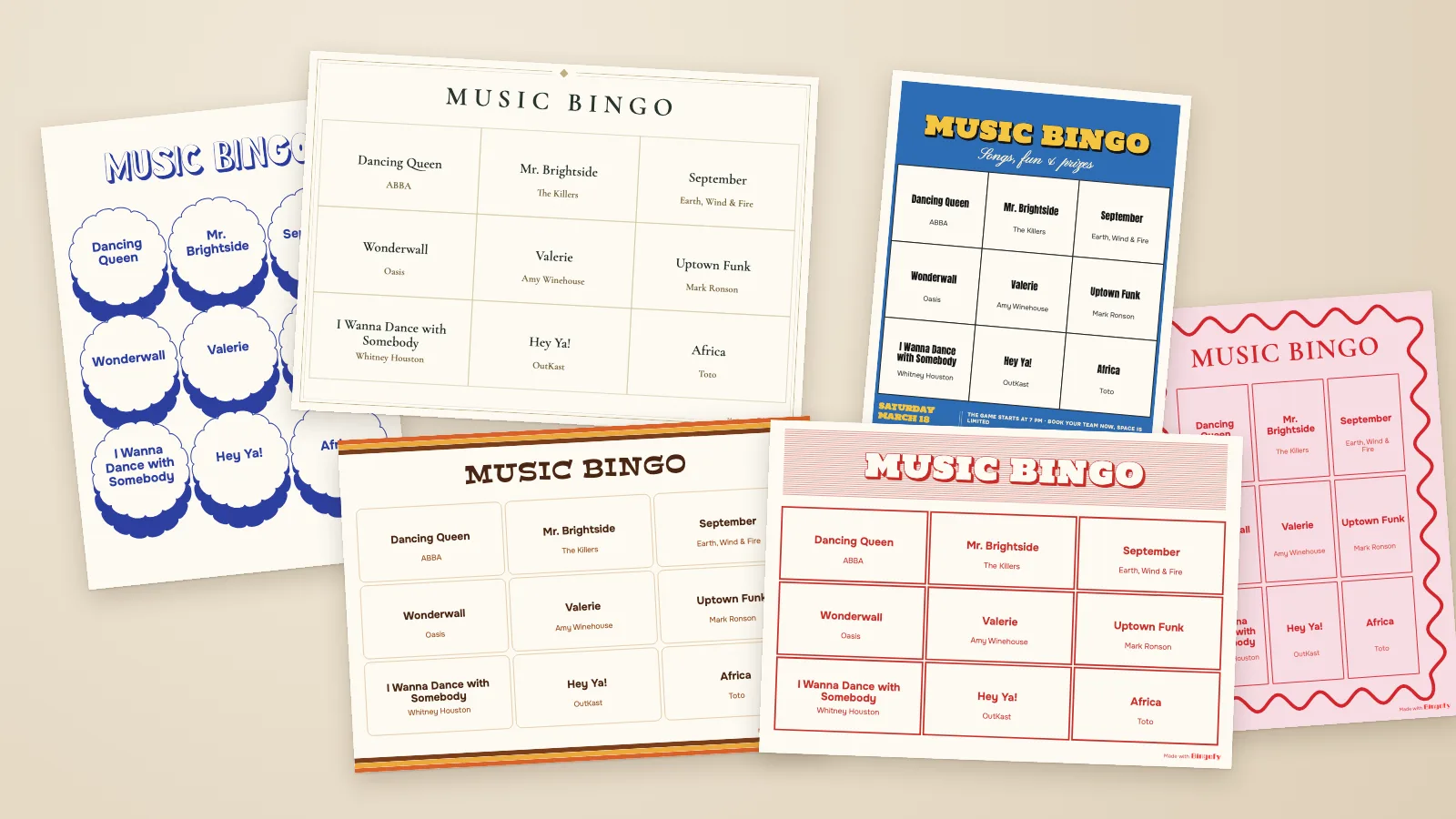
The same readability rules apply to the cards in people’s hands. Bingofy lets you design your own cards with your logo and venue colors, but keep the song text dark on light cells. Nobody should squint at the TV or the card.
Ready to run a smooth music bingo night? Make your cards with Bingofy: paste a Spotify playlist, print the cards, and spend your setup time on the sound and the screen instead.