You generated your music bingo cards, printed them out, and immediately wondered: “Why do these look like a ransom note?”
You’re not alone. Most hosts run into the same card quality problems, and most of them are totally fixable. Let’s diagnose what’s going wrong and how to make cards people actually want to hold.
The Most Common Card Crimes
Problem #1: The Font Size Lottery
Open your cards and compare any two squares. Do the text sizes match? Probably not.
Most basic generators use aggressive auto-sizing: they shrink text until it fits the square. This means “Stay” gets massive text while “Somebody That I Used to Know” becomes microscopic. The result looks chaotic and unprofessional.
The Fix: Use a generator with consistent text sizing, or choose songs with similar title lengths. If you’re stuck with inconsistent cards, manually check that all text is readable from arm’s length before printing.
Problem #2: Text Cramming
Long song titles get squeezed onto one line, creating an unreadable mess:
“MrBrightsideRemasteredVersion” instead of something legible.
The Fix: Good generators handle line breaks intelligently. If yours doesn’t, consider shorter song titles or a tool that formats text properly. Your cards should wrap text naturally, not compress it into a single line.
Problem #3: Low Contrast
White text on light purple. Yellow text on cream. These combinations might look “aesthetic” in the preview but become invisible when printed.
The Fix: Stick to high-contrast combinations. Black text on white or light backgrounds. White text on dark backgrounds. If you can’t read it easily in the preview, it’ll be worse on paper.
If your generator lets you pick colors, this is the one rule you never break. Go as wild as you want on the title and the background, but keep the song and artist text dark on light cells (or light on dark). Contrast first, vibes second.
Problem #4: Stock Template Syndrome
Generic bingo templates scream “I downloaded this for free five minutes ago.” Clip art borders, weird decorative fonts, random stock images—these make your event look amateur.
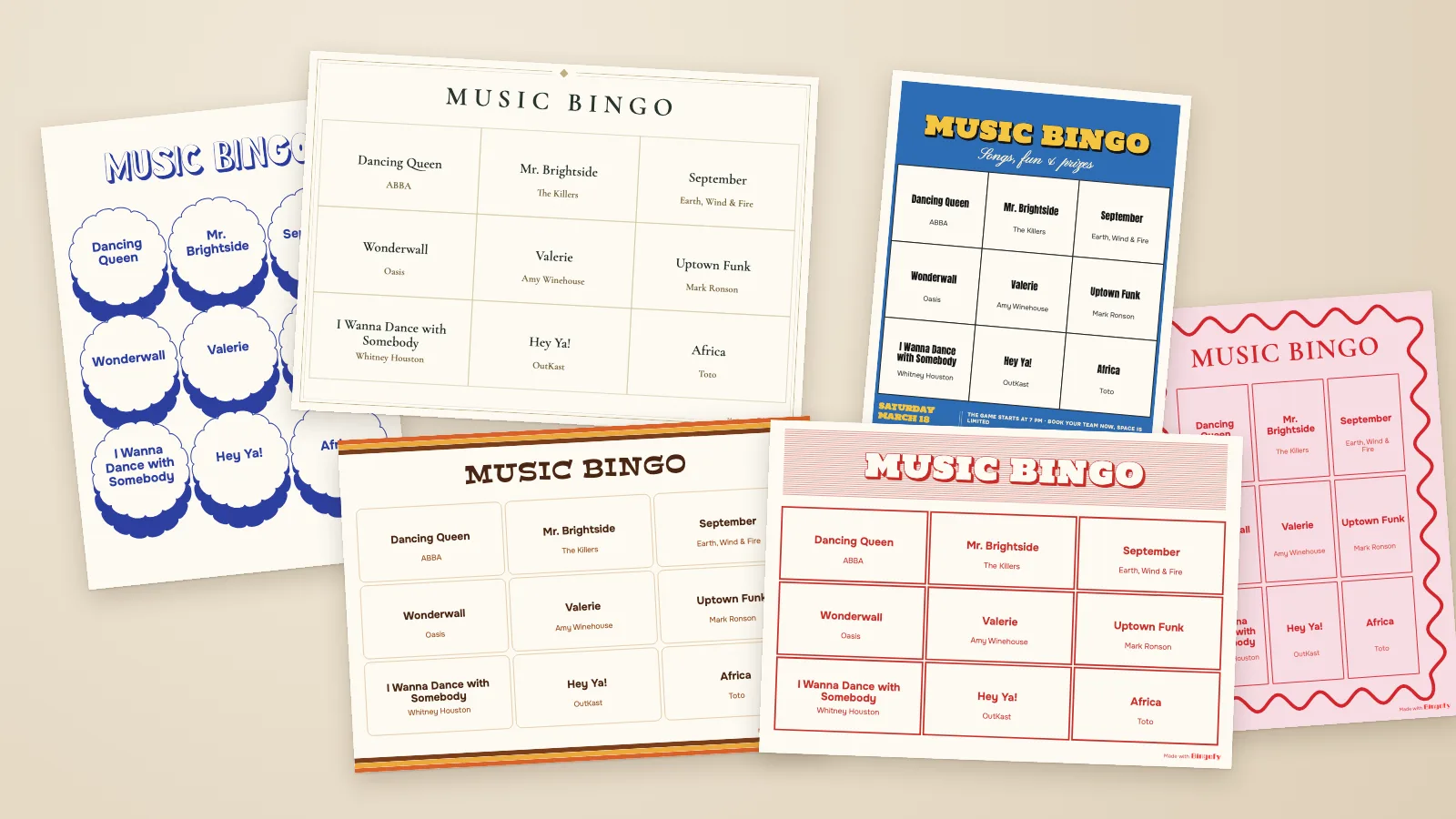
The Fix: Make it look like your event, not like a template. Simple still beats busy, but simple doesn’t have to mean plain. One good title font, your colors, your logo or the event name, and a clean grid. That says “this was made for tonight” instead of “I found this on page 3 of Google Images.”
A clean card with clear text and one or two personal touches will always look better than a cluttered template with decorations nobody asked for.
Problem #5: Printer vs. Screen Mismatch
Your cards look perfect on screen and terrible on paper. Colors shift, text gets fuzzy, margins get cut off.
The Fix: Always print a test card first. Use standard paper sizes (A4, letter), check your margins, and if colors matter to you, remember that screen colors rarely match print colors exactly.
And think about the paper itself. A design made for kraft or pastel paper printed on plain white office paper will look off. Either use the paper it was made for, or print the background color yourself (more ink, same look).
What Actually Makes Cards Look Good
Forget the design jargon. Here’s what matters:
Readable Text at Arm’s Length
Your players will hold cards at normal reading distance. If you need to squint, the text is too small. Period.
Consistent Formatting
All squares should look like they belong on the same card. Same text treatment, same spacing, same visual weight.
Enough White Space
Cramped cards feel stressful. Give your text room to breathe. Margins exist for a reason.
Clean Typography
Use one or two fonts maximum. Sans-serif fonts (like Arial, Helvetica, or similar) are easier to read at small sizes than decorative fonts. Save the fancy script or the chunky party font for the title. The song names should be boring on purpose.
Print-Friendly Colors
High contrast, no neon colors, and go easy on gradients behind text. Your printer won’t reproduce them as smoothly as your screen does.
The Right Paper
Paper does half the design work. Thicker paper (around 120 to 160 g/m²) feels like a real card and doesn’t fold when people mark it. Off-white, kraft or a pastel color can make a simple design look intentional.
A Little Bit of You
A logo, the venue name, the couple’s names, the date of the next event. One or two personal touches turn a generic card into something people actually take home.
The “Would I Pay Money for This?” Test
Before printing 100 cards, ask yourself: “If I saw these cards at an event, would they look professional?”
If the answer is “eh, they’re fine,” that might be okay for a house party. But if you’re hosting at a venue—a bar, a corporate event, a wedding—“fine” isn’t good enough. Your cards represent the whole experience.
Quick Fixes for Ugly Cards
Already generated cards that don’t look great? Here’s what you can do:
Regenerate with a cleaner playlist: Swap the songs with the longest titles for shorter ones in Spotify, then create the cards again. In Bingofy, keep at least 20 unique songs for 3x3 cards, 25 for 4x4 and 30 for 5x5.
Choose songs strategically: Skip songs with very long titles. “September” will always format better than “I Gotta Feeling (David Guetta Remix).”
Try different paper: Matte paper handles most printing better than glossy. Cardstock adds a premium feel. Colored paper (kraft, off-white, pastels) does a lot for very little effort.
Print in black and white: If your color printing is unreliable, crisp black-and-white cards often look better than muddy color ones.
When to Just Use Better Tools
Sometimes the problem isn’t your choices—it’s your tools. If you’re fighting with a generator that produces inconsistent results no matter what you do, switch tools.
We’re biased, obviously, but we built Bingofy specifically because we got tired of the formatting lottery with other tools. You paste a Spotify playlist and it puts your real songs on the cards for you. Then, in the Design step, you decide how they look:
- Start from a good design. Pick one of the Bingofy designs (wedding invite, 70s groove, vintage red, event flyer and more) or hit Start from scratch for a blank card.
- Fonts and contrast. 17 fonts for the title, plus your own font, size and color for the songs and artists. Fancy on top, readable in the cells.
- Your logo and your stuff. Drop in your logo or a photo, add the venue name, the date or your Instagram, and put things in front of or behind the grid.
- The paper. Each design tells you which paper it was made for (white, off-white, beige, kraft or a pastel). Only have white? Turn on Print the background colour and your printer fills it in.
You can also pick a design and change nothing at all. It’s free on every game, including the free one with up to 15 cards. The full tour is in design your own music bingo cards.
Before vs. After Checklist
Before printing your cards, verify:
- All text is readable without squinting
- Font sizes are consistent across squares
- Long titles wrap correctly (not crammed)
- High contrast between text and background
- Fancy fonts only in the title, not in the song names
- Paper matches the design (or the background color gets printed)
- Margins won’t get cut off by your printer
- Test print looks good on actual paper
The Real Secret
Here’s what nobody tells you: good-looking cards matter more than you think.
In our experience, when players get cards that look made for the night, they take the game more seriously, and plenty of them take the card home.
When they receive janky cards with unreadable text and mismatched fonts, they subconsciously downgrade the whole experience.
First impressions happen fast. Make your cards worth holding.
Ready to make cards people actually want to keep? Create a game in Bingofy, pick a design and make it yours. It’s free for up to 15 cards, design included.