Okay, this one’s big for us.
For a long time, Bingofy cards looked… fine. Clean, readable, a little Bingofy logo on top. They did the job. But people asked us things like “can I put my bar’s logo on it?”, “can it match my wedding invites?” or “can the title be pink?”. And we had to say “eh, not really”.
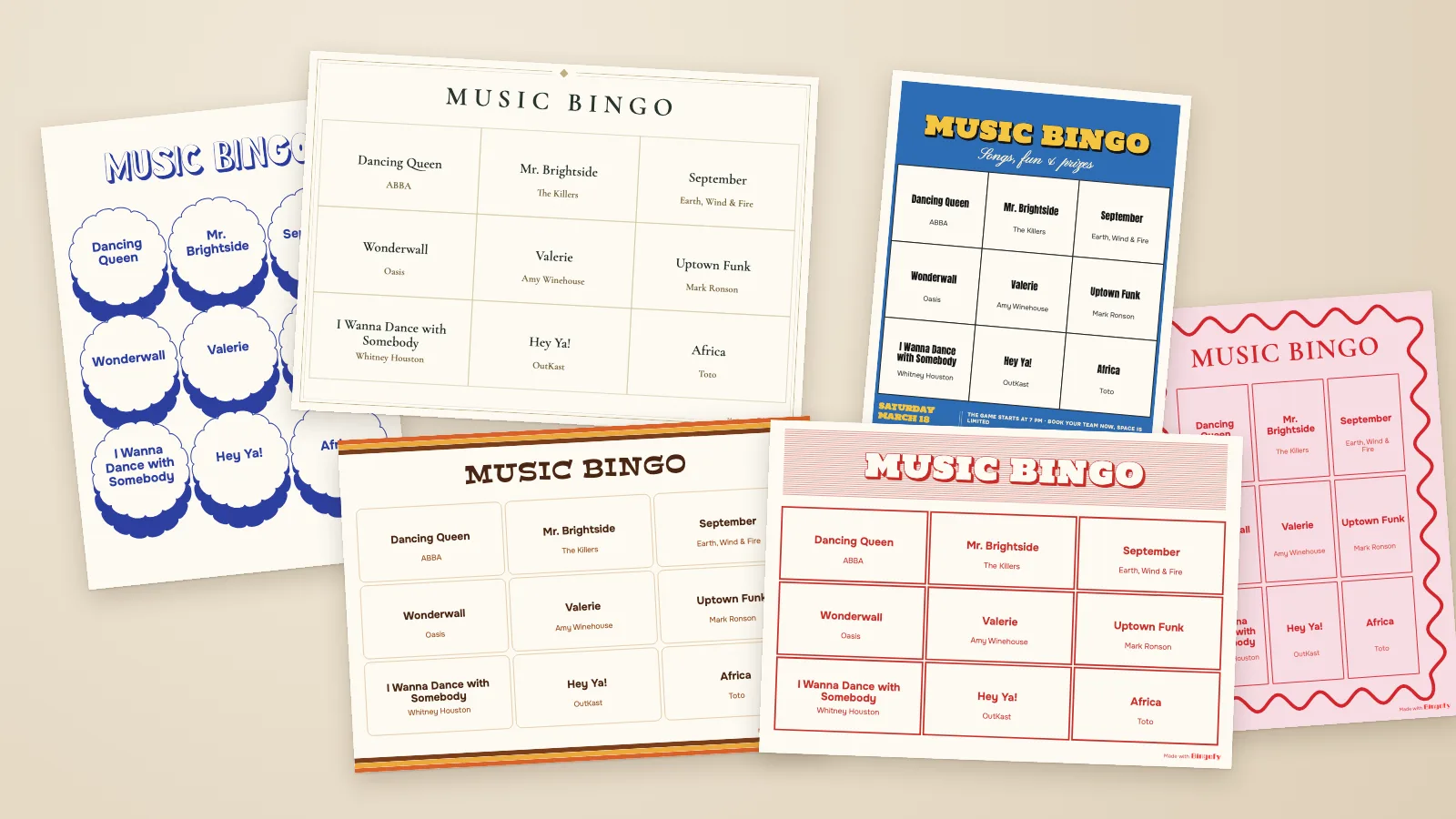
Well, now you can. We rebuilt the whole design part of the game creator into a proper card editor. Think a mini Canva, but made only for music bingo cards. You drag things around, change fonts, drop in your logo, play with colors, and the cards you print look like your event, not ours.
And the best part: it’s free on every game, including the free one with up to 15 cards.
Open the game creator and go play with it, or keep reading for the tour.
Where to find it
Creating a game in Bingofy has three steps: how many people are playing, which playlist you’re using, and the Design. That last step is where the fun is now.
When you get there, you’ll see two tabs:
- Bingofy designs: ready-made looks our team made, from a wedding-invite style to a 70s record sleeve vibe, a vintage red one, an event flyer and more.
- My designs: the cards you’ve saved yourself (more on that below).
Pick one and it opens in the editor with your real songs already on it. Or hit Start from scratch if you want a blank card and full control.
Not in the mood to design? Totally fine. Pick a design you like, don’t touch anything, and create the game. It takes about ten seconds.
What you can change
Short answer: pretty much everything you can see on the card. Long answer:
The title
Double-click the title on the card and type whatever you want. “MUSIC BINGO”, “Laura & Marc’s Wedding”, “Thursday Trivia at The Fox”, whatever.
Then make it look good. There are 17 fonts to pick from, from clean ones like Onest and Anton to fancy script ones like Pinyon Script, and some wild ones like Bangers or Londrina Shadow for party nights. On top of that you can add:
- An outline around the letters
- A drop shadow or a chunky 3D block shadow
- A panel behind the title (plain or lined), like a little sign
- Dots, diamonds or stars between the letters (very retro, very cute)
The background
Solid color, a gradient, or your own image. If you use a photo, you choose whether it fills the whole card or shows the full image.
The cells
This is where the cards stop looking like a spreadsheet. You can:
- Change the cell shape: square, round, or a scalloped badge
- Switch the lines to a hand-drawn pencil style
- Add a stacked shadow behind each cell for that sticker look
- Pick the fill, border color, border width and corner radius
- Change the font, size and color for the song and the artist, or hide the artist completely
- Change the grid (3x3, 4x4, 5x5…) and the spacing around the cells
Your own stuff: text, images and shapes
This is the part that feels like Canva. You can add:
- Text: your venue name, the date, your Instagram, the prize. Each text has its own font, color, size, rotation and an optional background box.
- Images: your logo, a photo of the couple, the company mascot. PNG, JPG or GIF up to 5MB.
- Shapes: circles, squares, triangles, stars, diamonds and a wavy frame.
Everything moves right on the card. Drag to move, drag a corner to scale, drag the little round handle to rotate. There’s a Layers panel where you can reorder things, and you can put any layer in front of the cells or behind them. Want a giant faded logo behind the grid? Put it behind the cells and drop the opacity. Done.
And yes, there’s undo and redo. You’re going to need it, trust us.
The game rules
The editor also has a Game section with two little extras we love:
- Free cell with Ringo: a free square near the middle of every card, so everyone starts with one marked
- Let some players choose the next song: a few random cards get a little reward, and whoever holds one picks a song to play next (or you make up your own prize). It gets people talking.
Pick your paper (seriously, it matters)
This is a small thing that makes a huge difference.
Each design tells you which paper it was made for: white, off-white, beige, kraft, pastel blue, pastel pink, pastel yellow or mint. The editor shows you the card on that paper color, and that color isn’t printed. The paper does the work. Print a wedding design on off-white card stock and it looks like an actual invite. Print the kraft one on brown kraft paper and it looks like it came from a craft market.
Only have white paper? No drama. Turn on Print the background colour and your printer fills it in. It uses more ink, but it works.
Our tip: 120 to 160 g/m² paper. It feels like a real card, people keep it, and it doesn’t fold when they mark it.
Save it and reuse it
Made something you love? Press Save design and it goes to My designs. Next time you create a game, it’s right there, with your logo, fonts and everything.
This is great if you host every week. Bars, this is for you: make your card once with your logo and colors, save it, and every new game is just “new playlist, same look”. You can rename, duplicate or delete saved designs whenever you want.
You can also open any past game and hit Create a game with this design. Same look, new songs.
A few ideas to steal
Not sure where to start? Here are some ideas:
- Bars and pubs: logo top left, the next event date at the bottom, your brand colors on the cells. Your cards become a little flyer people take home.
- Weddings: match the invitations. Same font, the couple’s names as the title, and maybe their photo behind the cells with low opacity.
- Company events: company logo, brand font, team name. HR will love you.
- Birthday parties: their face on the card. That’s it. That’s the idea.
- Fundraisers: the cause, the date and the sponsors’ logos at the bottom.
- Themed nights: 70s night with the groovy fonts, Halloween with dark colors and stars, Christmas with… you get it.
A few honest notes
- Use a computer. You can pick ready-made designs on your phone, but the full editor needs a computer or a tablet in landscape. Dragging stuff around a phone screen is no fun anyway.
- Keep it readable. It’s tempting to go wild, but people need to read song titles fast while the music plays. Fancy font for the title, simple font for the cells. Dark text on light cells. If you have to squint on screen, it’ll be worse on paper.
- Print one test card. Always. Colors on screen and on paper are never exactly the same.
- There’s a small “Made with Bingofy” signature at the bottom of every card. It’s tiny, it’s how other hosts can find us, and it’s what lets us keep the editor free.
Go make something pretty
That’s it. We had a lot of fun building this, and we can’t wait to see what you make with it.
Create a game and design your cards. It’s free for up to 15 cards, design included.
If you still need the basics, check out how to create music bingo cards from Spotify or our ready-made playlists. And if you make something cool, send it to us. We really want to see it.